On this page
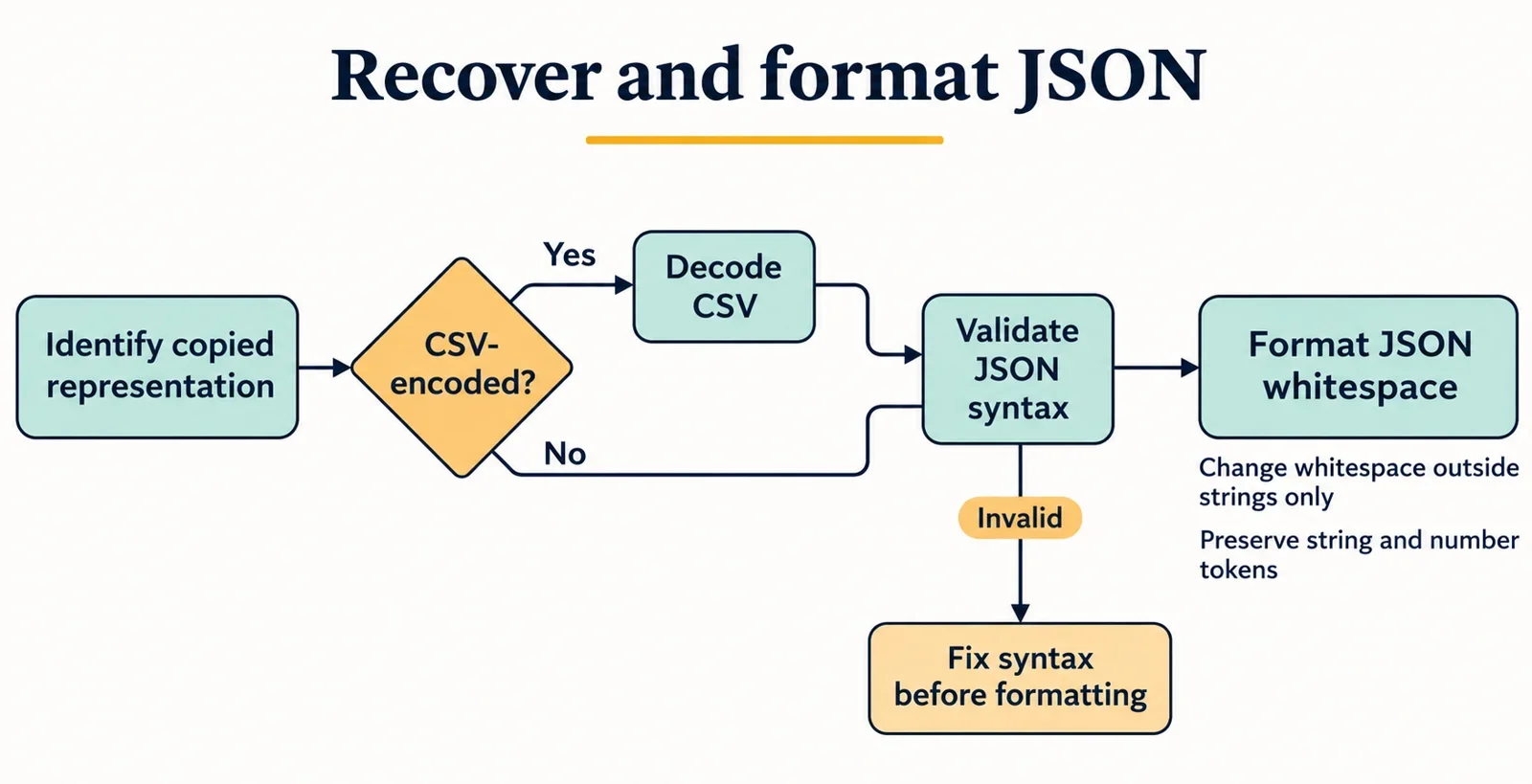
To restore JSON copied from CSV, first determine whether the text still contains CSV wrapping. If it does, use a CSV parser configured for that export to extract the intended field as text. Then validate the recovered JSON and format it using a process that preserves its original string and number tokens.
If a spreadsheet has already decoded the cell, begin with JSON validation instead. Applying CSV decoding again can introduce another error. Keep an untouched copy of the input throughout recovery, and distinguish a readable result from a preserved result: attractive indentation alone does not show that escapes, duplicate keys or long numbers survived.
Identify which representation you copied
Begin with the source of the copy operation. Text taken from a raw export, a spreadsheet cell and a JSON response can require different handling even when each contains the same intended document.
| Possible representation | What to establish | Next step |
|---|---|---|
| One serialized CSV field | Whether CSV wrapping and doubled quotation marks remain | Decode the field with the correct CSV settings |
| A complete CSV record | Which record and column contain the document | Parse the CSV and select that field |
| An already decoded spreadsheet cell | Whether the copied text is the cell value | Validate that text as JSON |
| A JSON string containing another JSON document | Whether a containing string is intentional | Confirm the intended decoding step before extracting its contents |
For example, the target document in this guide is {"label":"a,b"}. Its serialized CSV field is "{""label"":""a,b""}" under the quoting convention used here. These are two representations of the example, with different processing requirements.
A containing JSON string introduces a separate possibility. The example "{\"label\":\"a,b\"}" should prompt you to confirm what the exporting system intended. Do not assume that every surrounding pair of quotation marks is CSV wrapping.
Ask about provenance before editing
Useful questions are concrete: Was this copied from an export preview or from inside a cell? Does the selection include adjacent columns? Is there an unchanged export available? Establish those details before removing characters. Appearance alone is a poor basis for choosing another decoding operation.
Extract the field with a CSV parser
When CSV serialization is still present, make field extraction a distinct operation. Configure a CSV parser for the actual export rather than applying replacements to the entire pasted text.
For the worked example below, the chosen convention uses a comma delimiter, double quotation marks around the field and doubled quotation marks for embedded quotation marks. Within that convention, the comma in the example value belongs to the same field. A configured parser should account for that field boundary.
Make the extraction settings explicit
Before running the extraction, record:
- The delimiter used by the export.
- The quotation and embedded-quotation convention.
- Whether the input includes a header record.
- The intended data record and column.
- The requirement to return the selected field as text.
Header handling and record selection deserve particular attention when a pasted selection contains more than one row. A successful parse of the wrong column still gives you the wrong payload.
Avoid a global replacement of doubled quotation marks. CSV decoding has a specific scope: the selected serialized field. After extraction, the recovered JSON may have its own quotation escapes and backslashes, which need separate treatment.
Retain both the original CSV text and the extracted field. If JSON validation subsequently fails, this pair lets you check whether the discrepancy appeared during extraction or was already present in the exported value. Keep any spreadsheet type-conversion step out of this recovery path where possible.
Follow one small example through both layers
Use this fixture to check your chosen tools before attempting a larger document. It contains one CSV record with one field and no header. Configure the parser for a comma delimiter and the doubled-quotation convention described above.
Stage one: extract the CSV field
Supply this exact CSV text:
"{""label"":""a,b""}"
The expected extracted field text is:
{"label":"a,b"}
At this boundary, compare the extracted text with the expected text character for character. The CSV wrapping has been decoded, while the comma remains within the example value. Do not perform an additional quotation-replacement pass.
Stage two: validate and format the JSON
Submit the extracted field text to a JSON syntax checker. Once it passes, request formatting that preserves the original tokens. With two-space indentation, the expected result is:
{
  "label": "a,b"
}
Run the check in this order:
- Parse the CSV using the stated configuration.
- Select the first record and its first field.
- Compare the returned text with the expected extracted value.
- Validate that returned text as JSON.
- Compare the formatted result with the expected presentation.
These are input/output fixtures for a configured parser and formatter. They do not establish a particular parser implementation or demonstrate that an enabled formatter preserves every kind of token.
If you integrate the steps into code, retain these boundaries as separate assertions. A failure to extract the expected field should stop the workflow before formatting. A JSON syntax failure should retain the extracted text for diagnosis.
Format JSON without rewriting its escapes
Define preservation before choosing the formatting path. For this recovery task, the desired operation changes whitespace outside strings while retaining the original string and number tokens. Ask whether the formatter provides that behavior, then check it with representative inputs.
Do not infer preservation from a formatter’s ability to produce readable output. The availability of JSON formatting alone does not establish how that formatter handles escape spellings or numeric tokens.
Use an escape-preservation fixture
Start with this constructed input:
{"line":"first\nsecond","quote":"say \"hi\"","path":"C:\\temp\\new","letter":"\u0041","id":123456789012345678901234567890}
For the requested preservation behavior, the exact expected output with two-space indentation is:
{
  "line": "first\nsecond",
  "quote": "say \"hi\"",
  "path": "C:\\temp\\new",
  "letter": "\u0041",
  "id": 123456789012345678901234567890
}
Compare the characters inside each quoted token and the complete numeric token. In particular, check the visible \n, escaped quotation marks, paired backslashes and \u0041 spelling. These expected results specify the recovery requirement; they are not a report that a particular formatter has passed it.
The supplied Unicode form uses a backslash followed by u and four hexadecimal digits. Preserving that spelling is a stricter requirement than accepting the escape. For example, PostgreSQL jsonb storage converts valid Unicode escapes to their equivalent characters. That behavior matters if retaining the original spelling is part of your task.
If the formatter’s preservation behavior is unknown, keep the extracted text as the authoritative copy. Use formatted output for inspection only until the relevant checks pass. For a longer document, choose a comparison process that reports token changes, rather than relying solely on visual similarity.
Locate the failure in the correct layer
An error becomes easier to investigate when you identify which representation the failing tool received. Keep the original CSV, the extracted field and any formatted result available as separate checkpoints.
| Failure point | First thing to inspect | Useful next action |
|---|---|---|
| CSV extraction | Delimiter, quotation settings and selected record | Reproduce extraction with the small fixture |
| JSON syntax validation | The exact extracted field text | Examine the reported location in that text |
| Tool acceptance after syntax validation | Duplicate-key and numeric-handling requirements | Request the tool’s specific rejection reason |
| Preservation comparison | Changed string or number tokens | Retain the original and investigate the transformation |
For JSON object keys, check quotation marks against the syntax checker’s diagnostic; the supplied JSON examples use quoted strings for keys. Avoid repairing the surrounding CSV when the reported problem belongs to the already extracted document.
Investigate physical line breaks separately
Under the described CSV convention, a physical line break inside a properly quoted field is part of that field’s value. Consequently, a field can extend across physical lines. Splitting the pasted text into lines before parsing can interfere with the intended extraction.
This CSV fixture illustrates a field containing a multiline document:
"{
""label"":""a,b""
}"
After extraction, validate the resulting text as JSON in its own right. CSV field membership does not establish JSON validity.
Also distinguish a physical line break from the visible \n sequence in the earlier string example. Inspect what is actually present and where it occurs. Do not replace every line break with \n, or every \n with a physical line break, as a general repair. If the intended content is unclear, compare it with an unchanged export before altering it.
Check duplicate keys, numbers and recovery limits
Successful syntax validation answers one question about the extracted text. It does not establish that every later tool will retain the same document representation. Make duplicate-member handling, numeric handling and earlier spreadsheet changes part of the final check.
Require an explicit duplicate-key outcome
Use a deliberate probe such as {"tag":"first","tag":"second"} and ask what the tool does with both occurrences. Does it preserve them, report them separately, reject the input under a stated policy or retain one value?
PostgreSQL jsonb, for example, retains only the last value for a duplicated key. This illustrates why a storage or conversion step needs its own preservation review. Do not assume that behavior applies to another tool, and do not accept an unexplained disappearance of one occurrence.
If a tool rejects duplicate keys, ask it to distinguish that policy decision from a JSON syntax diagnostic. For recovery, preserving the original text or stopping with an explicit explanation is more useful than silently choosing a value.
Compare complete number tokens
The earlier fixture includes a long number specifically to test handling. Compare the entire token before and after formatting, and ask whether the tool imposes numeric limits or performs a conversion.
IEEE 754 double precision is a common implementation choice discussed for JSON numbers. That makes the implementation’s numeric behavior a relevant question; it does not establish the behavior of the formatter you are using. Request explicit handling of numbers beyond its supported range, and retain the original text whenever preservation is uncertain.
Recognize information already lost
Ask whether spreadsheet software changed the value before it was copied. If an identifier’s leading zero was discarded, a subsequent JSON export cannot reconstruct that zero from the altered value alone. Seek an unchanged export or another authoritative copy rather than guessing a replacement.
Before accepting the recovered document, confirm the intended record and column, successful JSON validation, unchanged string and number tokens, and an explicit outcome for duplicate keys. Keep unresolved transformations visible so the final result accurately reflects what was recovered.